
Alert Labels & Business Hours
Alert Labels are tags you can create to categorize and organize your Alert Profiles and Active Alerts. They make it easier to manage and filter your profiles, especially as your list grows. For example, you could create labels like "Compliance," "High-Priority Users," or "Informational."
How to Create an Alert Label
-
Navigate to the main Alerting section of the portal.
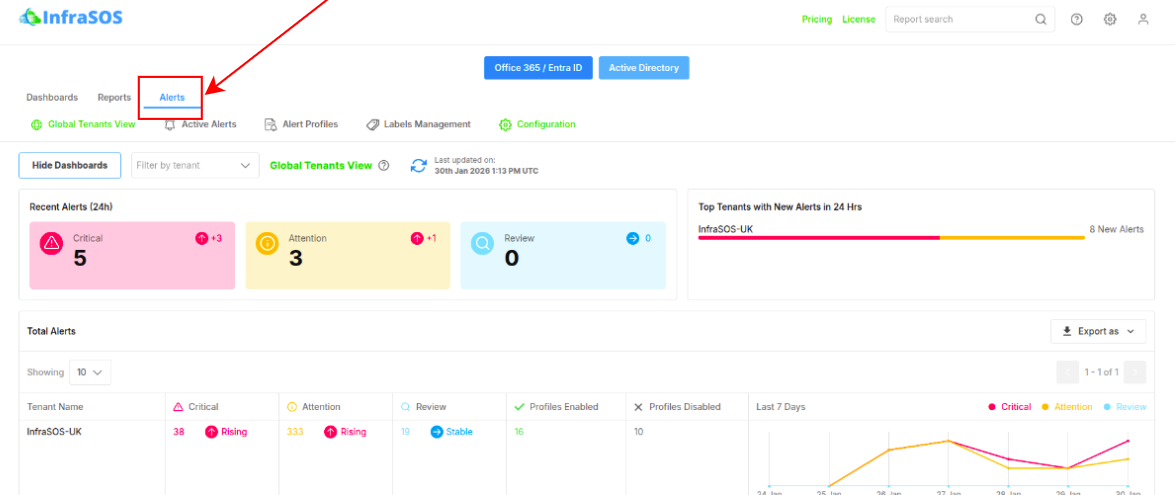
-
Find and click on the Labels tab. Available on both tabs: Office 365/Entra ID and Active Directory. Data between different tabs is shared.
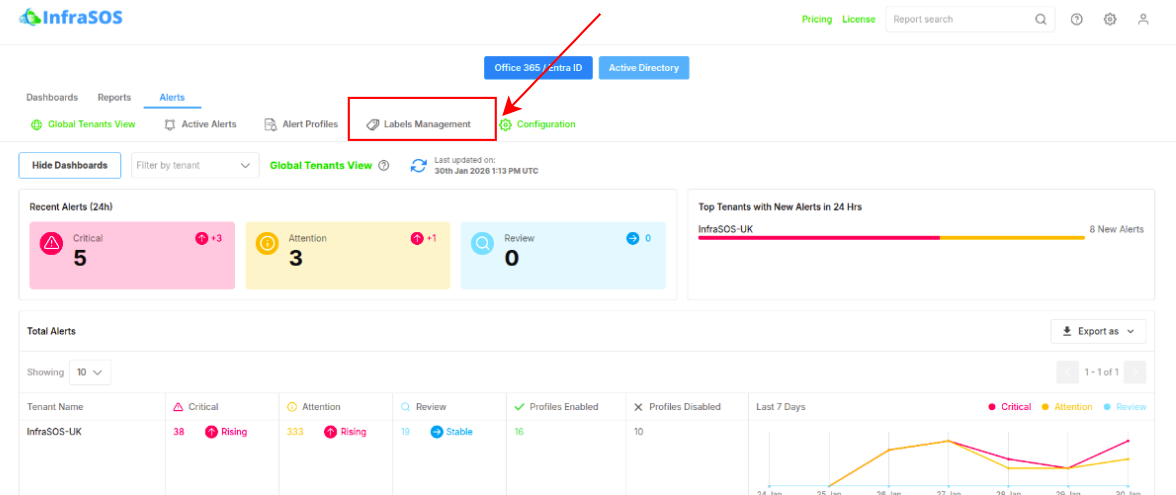
-
Click the “+ Create Label” button.
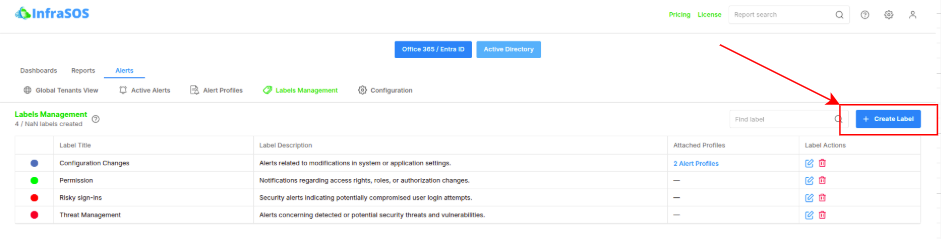
-
Enter a descriptive title, color and description for your label (e.g., "Critical Infrastructure").
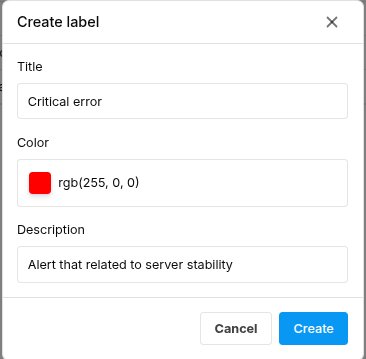
- Save the label. It will now be available to use in any alert profile.
How to Use Alert Labels in an Alert Profile
-
While creating a new Alert Profile or editing an existing one, locate the Labels field.
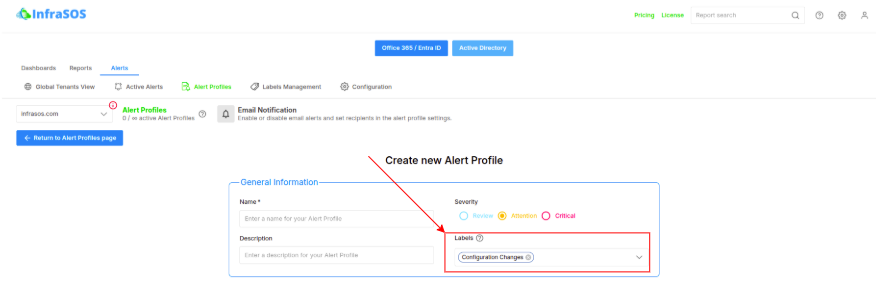
-
Click inside the field to see a dropdown list of all your created labels.
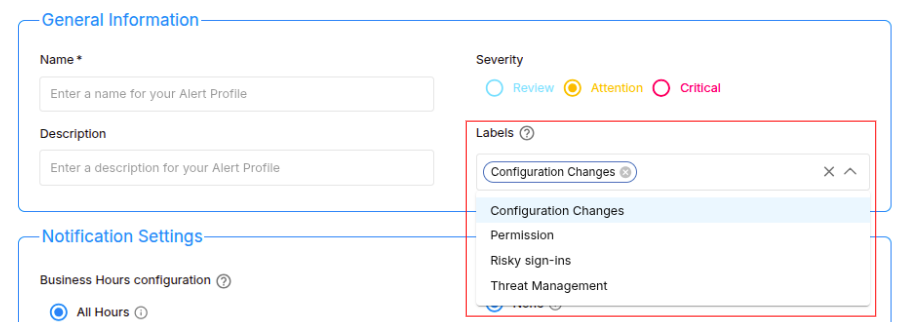
- Select one or more labels that apply to the profile.
- Once the profile is saved, you can go to the Active Alerts page and filter your view by these labels to quickly find specific groups of alerts.
Business Hours
Business Hours in InfraSOS allow you to define your company's operational hours for each day of the week. This feature allows you to choose the Active Alerts for which you receive email notifications. You can set up different business hours schedules for each of your on-premise Active Directory (AD) agents and your Azure AD (Office 365) tenants.
How to Configure your Business Hours
-
Navigate to the main Alerting section of the portal.
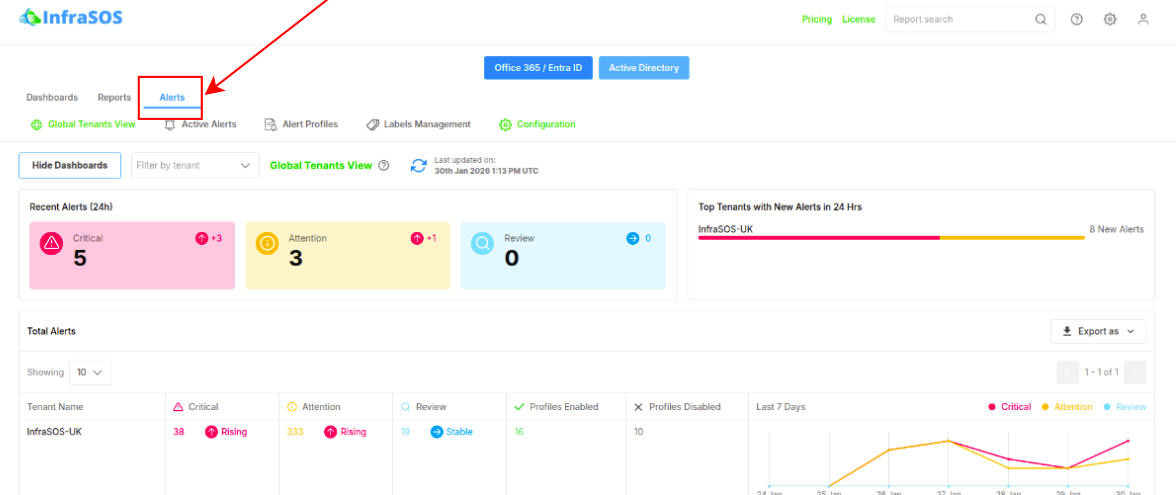
-
Find and click on the Configuration tab.
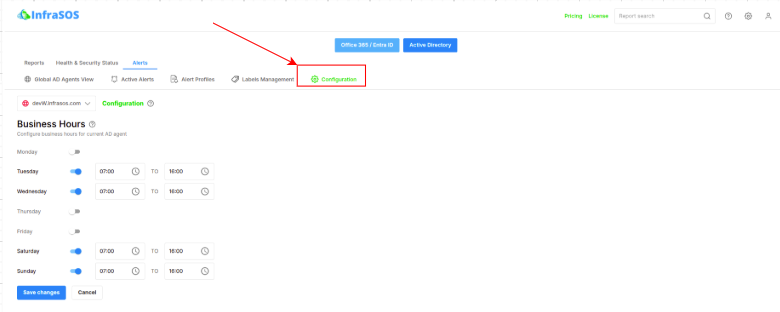
- Use a toggle button next to each day to enable it and configure it.
- Use a time picker to configure start and end times of a day.
- Save the changes.
How to use Business Hours
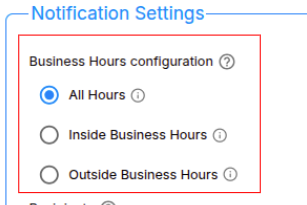
Business hours are primarily used to filter alert notifications. Each Alert Profile has a setting called the "Business Hours Configuration", which can be configured with one of the following options:
- All Hours: You will receive notifications for all alerts, regardless of when they occur. This is the default setting.
- Inside Business Hours: You will only receive notifications for alerts that are triggered within your defined business hours.
-
Outside Business Hours: You will only receive notifications for alerts that are triggered outside of your defined business hours. This is useful for escalating critical issues that happen overnight or on weekends.
This feature helps you reduce notification fatigue and ensure that you and your team can focus on what's important, when it's important. When you view alert events in the portal, you can also filter them based on whether they occurred inside or outside of your configured business hours.