
How to Setup Windows Event Forwarding for Alerting
This guide explains how to set up the InfraSOS agent server as a Windows Collector Server that will receive events from all source servers (All Domain Controllers & any other Windows Server or Desktop you would like to monitor) in your Active Directory domain as part of our Active Directory alerts & monitoring service.
The InfraSOS agent service will monitor the forwarded events log and forward relevant events that match your alert profile criteria to InfraSOS AD monitoring.
Overview: How InfraSOS Uses WEF
InfraSOS uses Windows Event Forwarding (WEF) to securely stream Windows event logs from source systems such as Domain Controllers to a central collector server.
The collector acts as a transport buffer, not long-term storage. Events are forwarded, processed, and analysed by InfraSOS in near real time.
Production Guide with Capacity Planning (HTTP & HTTPS)
This guide explains how to configure Windows Event Forwarding (WEF) to send events from Active Directory systems to an InfraSOS Collector Server in a stable, production-ready configuration.
It includes:
- Capacity planning guidance
- GPO creation and scoping
- HTTP and HTTPS configuration options
- Validation and testing steps
- Production best practices
Architecture
- Sources: Domain Controllers or member servers
- Collector: Dedicated Windows Server (recommended)
- Transport: WinRM over HTTP (5985) or HTTPS (5986)
- Subscription type: Source-initiated, Push
- Event format: Structured Events (not RenderedText)
-
Capacity Planning (Important)
Estimate Event Volume (Recommended)
Run this on a representative Domain Controller during business hours:
$since = (Get-Date).AddMinutes(-5)
$count = (Get-WinEvent -FilterHashtable @{LogName='Security'; StartTime=$since}).Count
[math]::Round($count / (5*60), 2)
This gives a rough events-per-second (EPS) figure.
- Repeat on multiple DCs and size for peak, not average.
-
Collector Server Sizing (Guidance)
| Environment size | Approx EPS | Recommended Collector |
|---|---|---|
| Small (1–5 DCs) | <500 EPS | 4 vCPU, 8–16 GB RAM |
| Medium (5–20 DCs) | 500–2000 EPS | 8 vCPU, 16–32 GB RAM |
| Large (20+ DCs) | >2000 EPS | Multiple collectors |
3. ForwardedEvents Log Sizing
- ForwardedEvents is a rolling transport buffer, not an archive.
| Environment | ForwardedEvents max size |
|---|---|
| Small | 512 MB – 1 GB |
| Medium | 1 – 2 GB |
| Large | Up to 4 GB (do not exceed) |
-
Step 1: Prepare the Collector Server
-
4.1 Requirements
- Domain-joined Windows Server
- Dedicated server (recommended)
- Time synchronised with domain
- Sufficient disk and memory
4.2 Ensure firewall rules allow WinRM (TCP 5985) traffic
Make sure Windows Firewall and any intermediate network devices allow inbound and outbound communication on port TCP 5985, which is required for WinRM. WinRM must be enabled, the port must be open, and both machines (Infrasos agent server & all DCs & any other Windows device that requires monitoring) must be able to reach each other on this port.
Check existing firewall rules with the following PowerShell command executed with Administrator privileges:
Get-NetFirewallRule | Where-Object DisplayName -like "Windows Remote Management*"
Check WinRM listeners:
winrm enumerate winrm/config/listener
Create firewall rules if they do not exist, using the following powershell scripts:
A) create inbound firewall rule
New-NetFirewallRule `
-Name "Allow WinRM 5985" `
-DisplayName "Allow WinRM TCP 5985" `
-Protocol TCP `
-LocalPort 5985 `
-Direction Inbound `
-Action Allow `
-Enabled True
B) create outbound firewall rule
New-NetFirewallRule `
-Name "Allow WinRM Outbound 5985" `
-DisplayName "Allow WinRM Outbound TCP 5985" `
-Protocol TCP `
-LocalPort 5985 `
-Direction Outbound `
-Action Allow `
-Enabled True
From the source machine execute the following PowerShell command to check the connection:
Test-NetConnection -ComputerName <collector-hostname> -Port 5985
-
Enable WinRM on all servers
On every server (collector and source), run the following powershell command:
winrm quickconfig -quiet
Then using the next command check and validate that service configured:
Test-WSMan
You should see a valid WSMan response.
-
Create a GPO to configure Event Forwarding
Open Group Policy Management and create a new GPO:
For example, GPO name: “InfraSOS WEF - Event Forwarding”
6.1 Configure Subscription Manager:
In the Group Policy Management Editor of the created GPO, go to:
Computer Configuration → Policies → Administrative Templates → Windows Components → Event Forwarding → Configure target Subscription Manager
Set to Enabled and enter:
Server=http://<COLLECTOR_FQDN>:5985/wsman/SubscriptionManager/WEC,Refresh=60
where <COLLECTOR_FQDN> is a FQDN of the collector server. For example:
Server=http://infrasos-agent.infrasos.local:5985/wsman/SubscriptionManager/WEC,Refresh=60
6.2 Configure WinRM Service
In the same GPO, go to:
Computer Configuration → Policies → Administrative Templates → Windows Components → Windows Remote Management (WinRM) → WinRM Service → Allow remote server management through WinRM
Set to Enabled
And select the following filter options:
IPv4 filter: *
IPv6 filter: *
6.3 Grant permissions to read event logs
In the same GPO, go to:
Computer Configuration → Policies → Windows Settings → Security Settings → Restricted Groups
Add the following group
“Group name”: Event Log readers
Add the WEC server as a member & Network Service in the following format:
DOMAIN\INFRASOS-AGENT$
Network Service

Note:
- Computer accounts are added as
NAME$ - Do not add users
- Do not add Administrators
6.4 Grant User Rights to Manage Auditing & Security Log
Next go to the following GP Setting:
Computer Configuration → Policies → Windows Settings → Security Settings → Local Policies → User Rights Assignment
Click on 'Manage auditing and security log' policy
Check 'Define these policy settings' and Add User > NETWORK SERVICE
Run gpupdate/force on your DCs to refresh the latest GPO
gpupdate /force
Check the Active Directory Builtin group Event Log Readers now has your WEC server & Network service as a member:

6.5 Event Log Permissions
The Network Service does not have permissions to read the Windows Security Log by default. (It does automatically have access to Application, System and other Event Logs.) Until you grant Network Service Read access to the Security Log, the forwarder will fail to subscribe to any WEC subscriptions specifying the Security Log as a source.
You can grant these permissions via Group Policy. Apply the following GPO setting:
Computer Configuration → Administrative Templates → Windows Components → Event Log Service → Security → Configure log access
The following SDDL string specifies the default permissions on the Security log granting Network Service access:
O:BAG:SYD:(A;;0xf0005;;;SY)(A;;0x5;;;BA)(A;;0x1;;;S-1-5-32-573)(A;;0x1;;;NS)

6.6 Enforce Log Limits on Collector
Set log limit sizes based on your environment, refer to table: #3-ForwardedEvents-Log-Sizing-_nmTB
On your collector server, run the following PowerShell command, to set the following setting (Sets forwarded events to 1GB):
wevtutil sl ForwardedEvents /ms:1073741824 /rt:false
-
Configure collector server
On the collector server run:
wecutil qc /q
This:
- Enables the Windows Event Collector service
- Configures firewall rules
- Sets required SDDL permissions
-
Create Event Subscription
- On the collector server:
- Open Event Viewer
- In the left panel navigate to
Event Viewer → Subscriptionsand click onCreate Subscriptionin the right panel - In the Subscription Properties window
- Enter the subscription name and optionally the description
- Destination log should be: Forwarded Events
- Choose Source computer initiated and click on Select Computer Groups…
- Click on Add Domain Computers and select the Domain Controllers group. Click Ok
-
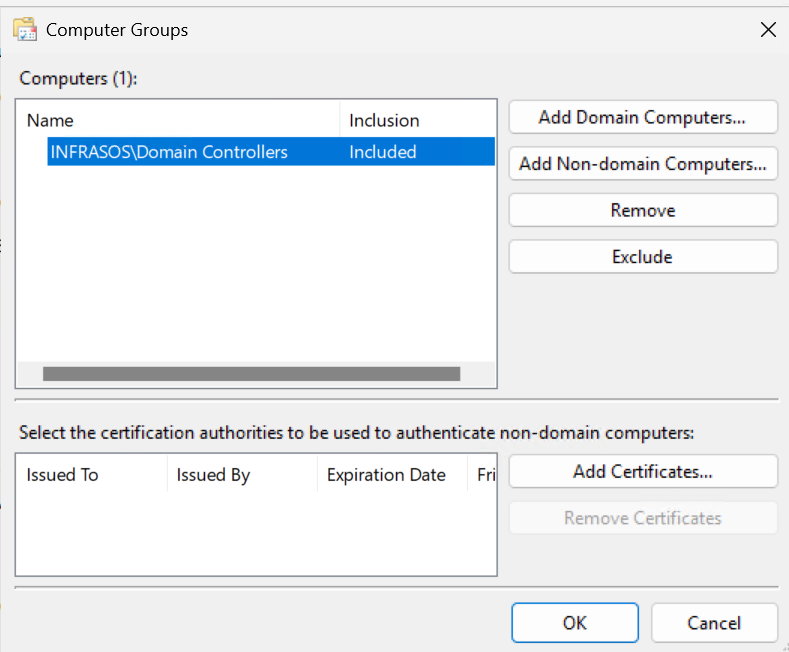
- Click on the Select Events…
- In the opened Query Filter dialog select the event levels to collect:
- Critical
- Warning
- Error
- Information
-
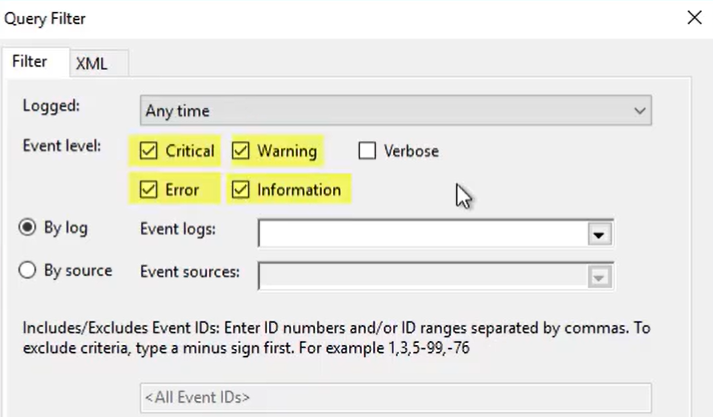
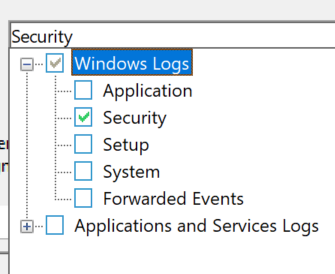
- Then the By log option under Event Logs select the Windows logs to collect, for example, start with:
- Security
-
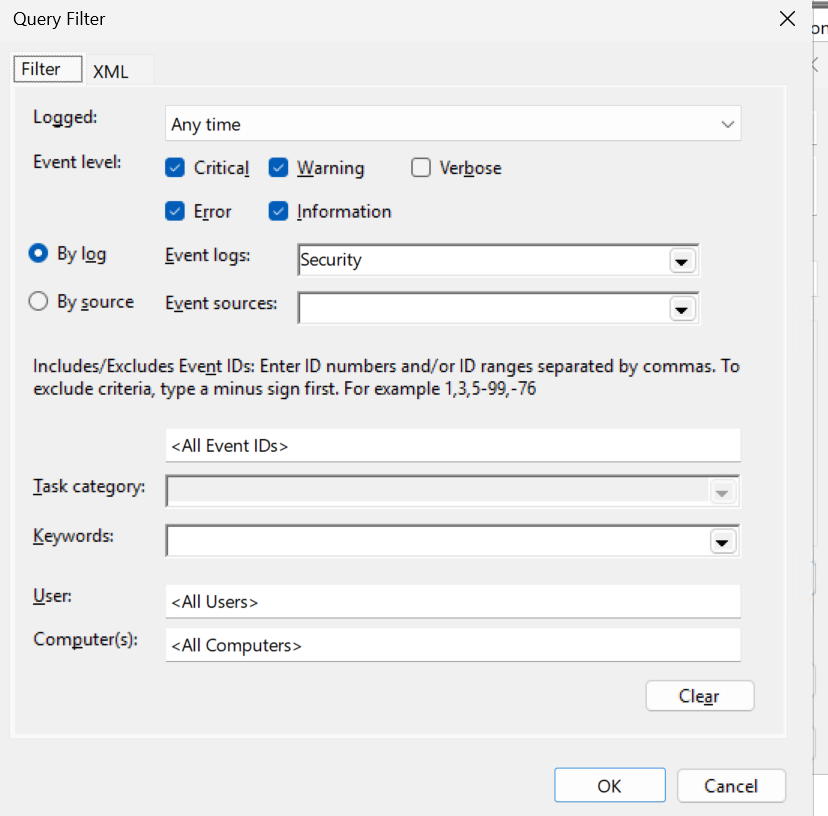
- Leave the reset on default, Click Ok
-
- Click on the Advanced… button and select any of the following delivery optimization.
- Under Event Delivery Optimization there are 3 options to select. Choose your desired level:
- Normal: This is the default option and provides a balance between reliable delivery and bandwidth conservation. It uses a pull delivery mode, batches five items at a time, and sets a batch timeout of 15 minutes.
- Minimize Bandwidth: This option is designed to strictly control network bandwidth usage. Events are delivered less frequently, using a push delivery mode with a long batch timeout of 6 hours. This is suitable for environments with limited bandwidth.
- Minimize Latency: This option ensures events are delivered with minimal delay, making it appropriate for collecting critical events or alerts. It uses a push delivery mode with a short batch timeout of 30 seconds*.
-
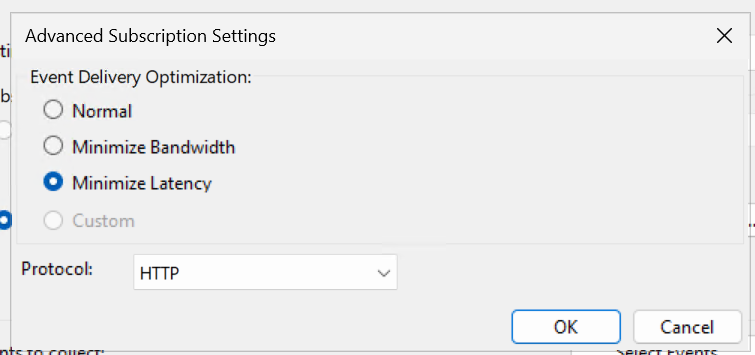
*Note: By default InfraSOS collector will collect all events every 15mins into the InfraSOS portal.
8.1 Validate Event flow
- On collector server execute the following PowerShell command, the service must be Running:
Get-Service Wecsvc
8.2 Update Event Forwarding ContentFormat to Events
- To optimise the collector server, change the format of forwarded events from RenderedText to Events.
Why:
- RenderedText dramatically increases CPU and memory usage
- It increases write amplification inside Event Log
- It is the #1 cause of EventLog instability under load
- Events format preserves structured data for parsing
- On the collector server run the following PowerShell command:
wecutil ss "subscription name" /cf:Events
For example, if the event subscription is called 'InfraSOS', you would run:
wecutil ss "infrasos" /cf:Events
Confirm the status:
wecutil gs "infrasos" | findstr /i "ContentFormat"
-
Restart InfraSOS Agent Service
Now its time to restart the InfraSOS Agent Windows Service

In the InfraSOS portal you should now see the Event Forwarding Status as enabled, it may take upto 15mins to update its status. Once status is set to enabled you're now ready to start setting up alert profiles.

-
Check EventCollector Operational Log
- On collector server open event viewer application and in the left panel navigate to:
Applications and Services Logs → Microsoft → Windows → EventCollector → Operational
There should not be any errors or warning events related to the created subscription. If you do see errors, this will give you an indication as to the error. In most cases if you have errors, delete the subscription and recreate.
- After some time, which depends on the configured delays, events appear on the source machine, in the Event Viewer application navigate to
Windows Logs → ForwardedEventsand confirm that the forwarded events are received by the collector server.
-
Check Domain Controller Eventlog-ForwardingPlugin Log
If you notice after 30mins your events still aren't showing on the collector server. Check on your domain controllers the following log for any errors in their event viewer:
Applications and Service Logs > Microsoft > Windows > Eventlog-ForwardingPlugin > Operational
If you have errors related to User: NETWORK SERVICE, this will be permissions related to the NETWORK SERVICE account. Re-confirm you've applied the GPOs above related to permissions on the security log on your domain controllers.